Automate Quote IDs
You can automate the Quote ID transfer from your ecommerce platform to ShipStation labels by configuring both the store connection settings and label printing settings. Both configurations must be completed for automation to work.
Configure your store connection
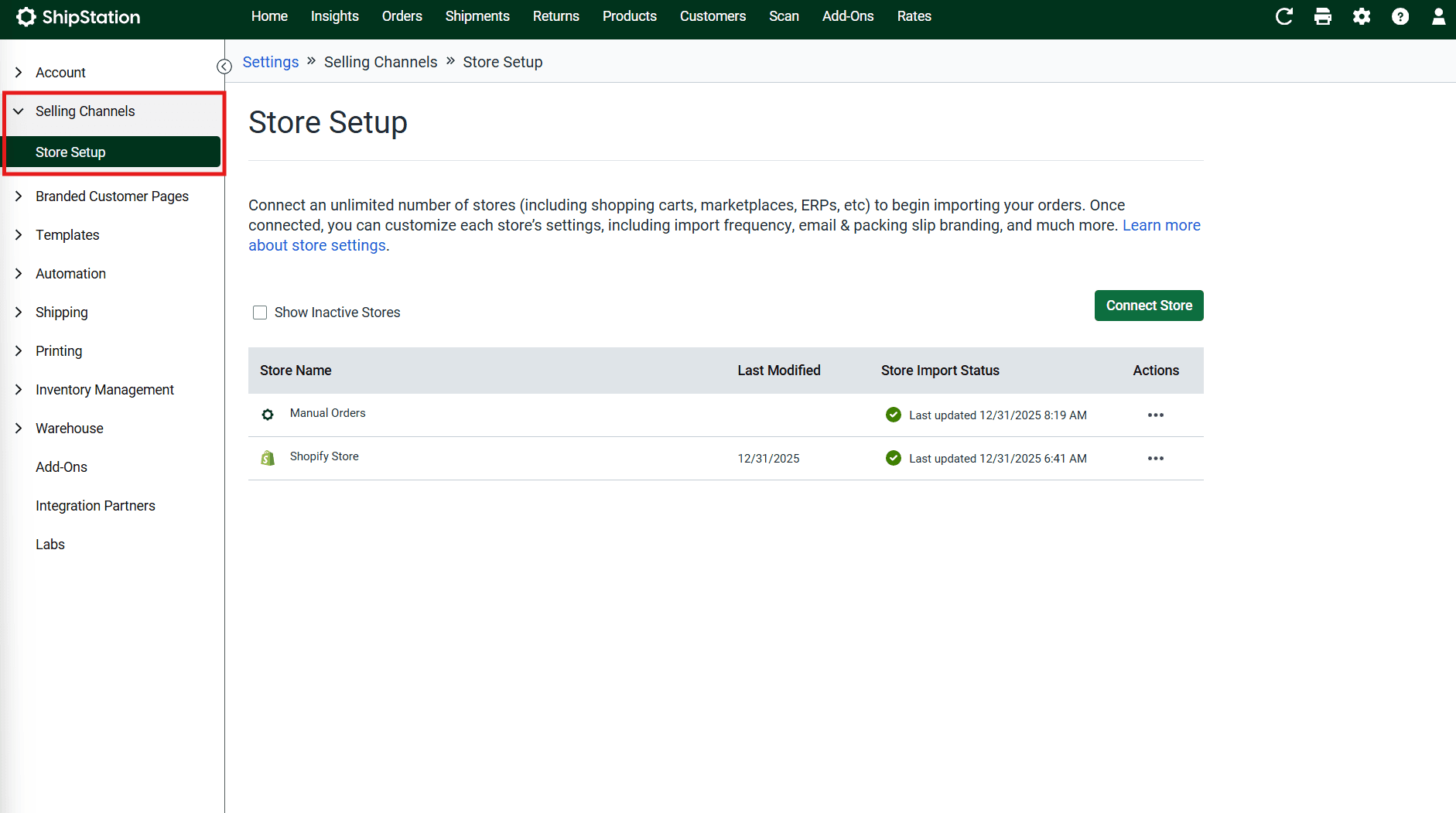
From ShipStation, go to Settings → Selling Channels → Store Setup
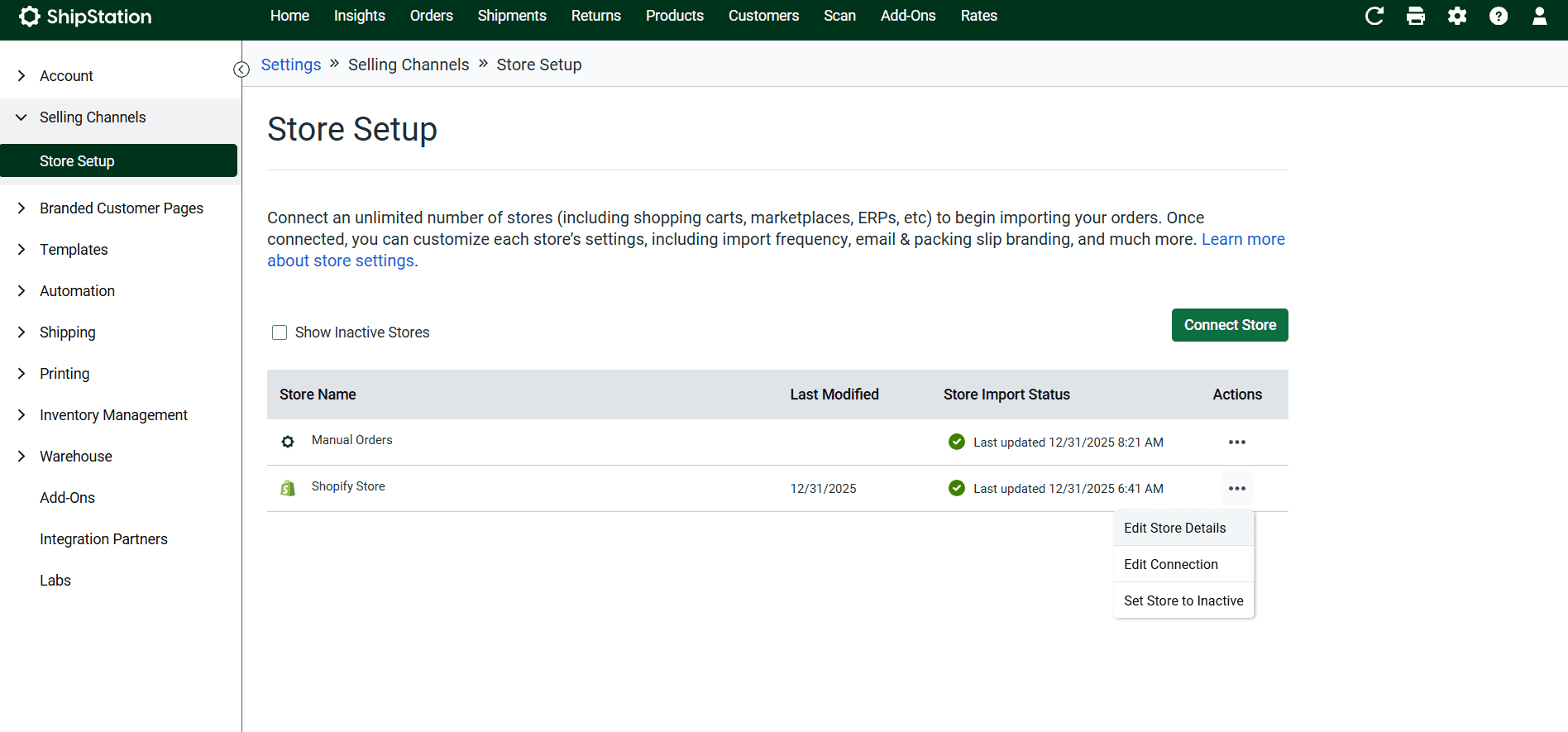
Locate your ecommerce store and click the Actions menu (...) → Edit Store Details
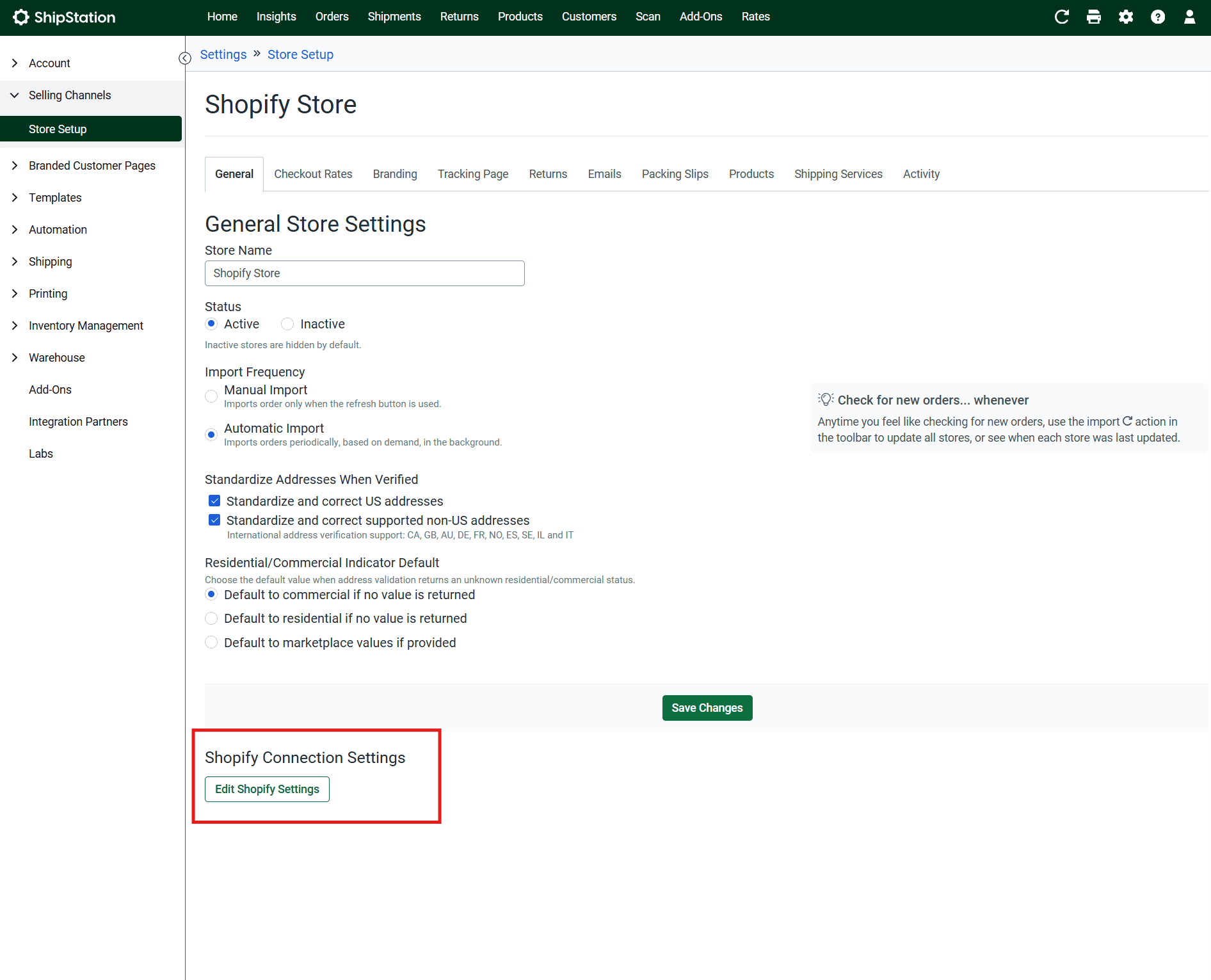
Under your ecommerce platform's Connection Settings, click Edit (your platform name) Settings
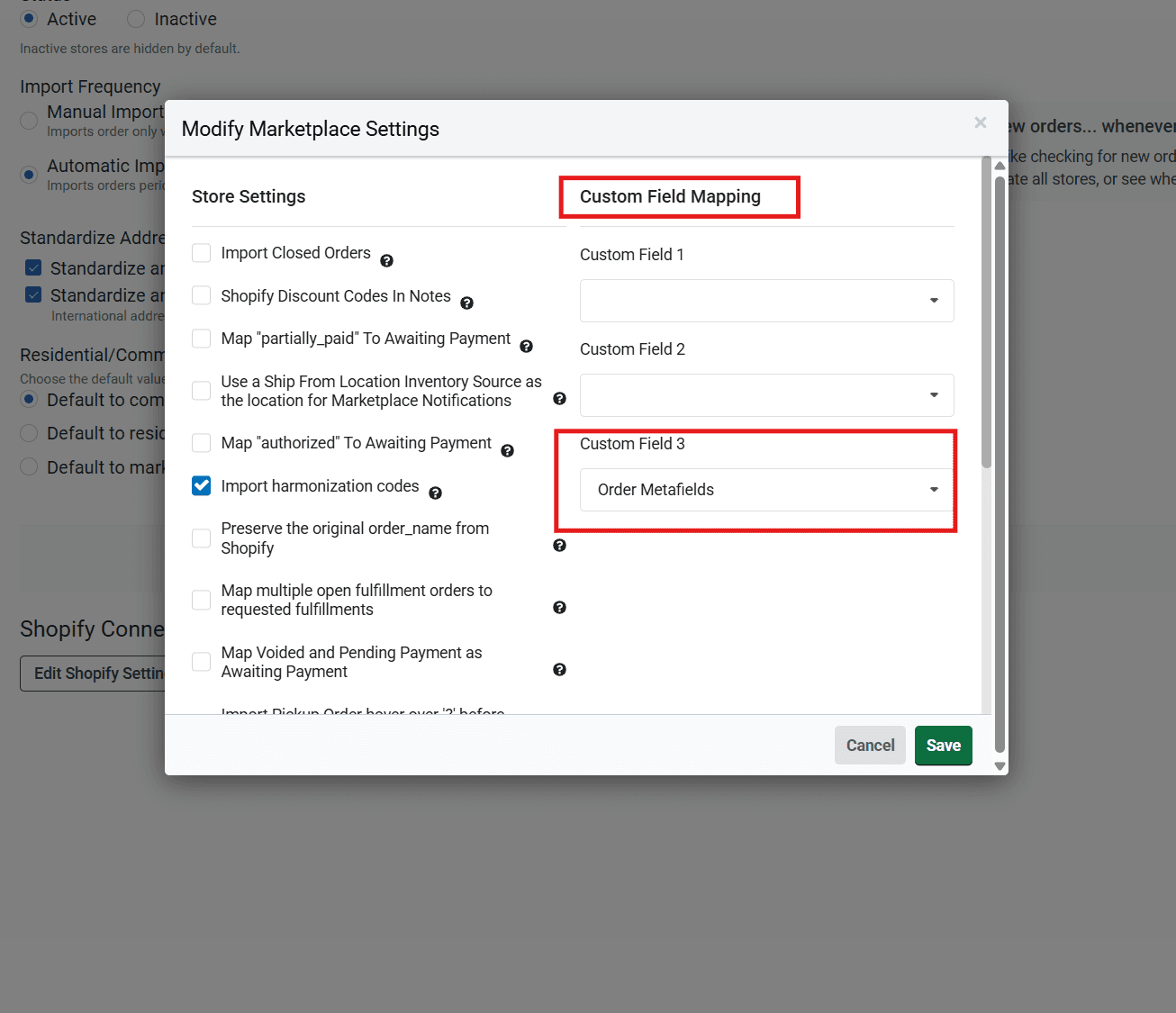
In the Modify Marketplace Settings modal, navigate to the Custom Field Mapping tab
Under Custom Field 3 (or whichever field matches your label configuration), select Order Metafields from the dropdown
- Click Save
Configure label printing settings
- Go to Settings → Printing → Printing Setup → Document Options (for Label)
- In Label Messages, set the message number to match your custom field mapping (e.g., if you mapped to Custom Field 3, set Message #3 to
[Custom Field #3]) - Click Save Settings
Once both configurations are complete, Quote IDs from your ecommerce platform's order metafields will automatically populate on your UPS labels. You can verify this is working by checking that the Quote ID appears on the label after processing an order.
Shopify: Order metafield definitions
If you're using Shopify, ensure the UPS Global Checkout™ Quote ID metafield is positioned first in your order metafield definitions list. ShipStation defaults to the first metafield when pulling order data from Shopify.
To verify or adjust metafield order:
- From Shopify admin, go to Settings → Metafields and metaobjects
- Under Metafield definitions, click Orders
- Locate UPS Global Checkout Quote ID in the list
- If needed, drag it to the top position using the handle icon (⋮⋮)
This positioning ensures ShipStation correctly maps the Quote ID to your configured custom field.
Manual Quote ID setup
If you need to manually enter Quote IDs for orders, you can configure ShipStation to display a custom field where you can paste the Quote ID for each order.
Configuration steps:
- Go to Settings → Printing → Printing Setup → Document Options (for Label)
- In Label Messages, set Message #1 to the field containing your Quote ID (e.g.,
[Custom Field #1]). You will then paste the Quote ID to the set field on each order, which can be found under Notes - Save Settings
Quote IDs will now appear on UPS labels.
ShipStation Quote ID setup
Learn how to setup Quote IDs for ShipStation.